

Master Plugin
5 Core Elements
- AI Mix Analysis
- Apply AI Results
- Mix Notes
- Tonal Matching
- Resets
Important: To use the Master plugin AI mix feature, ensure you have the Sizzlerize Neural Track plugin on your tracks and "Connect to Master" enabled.
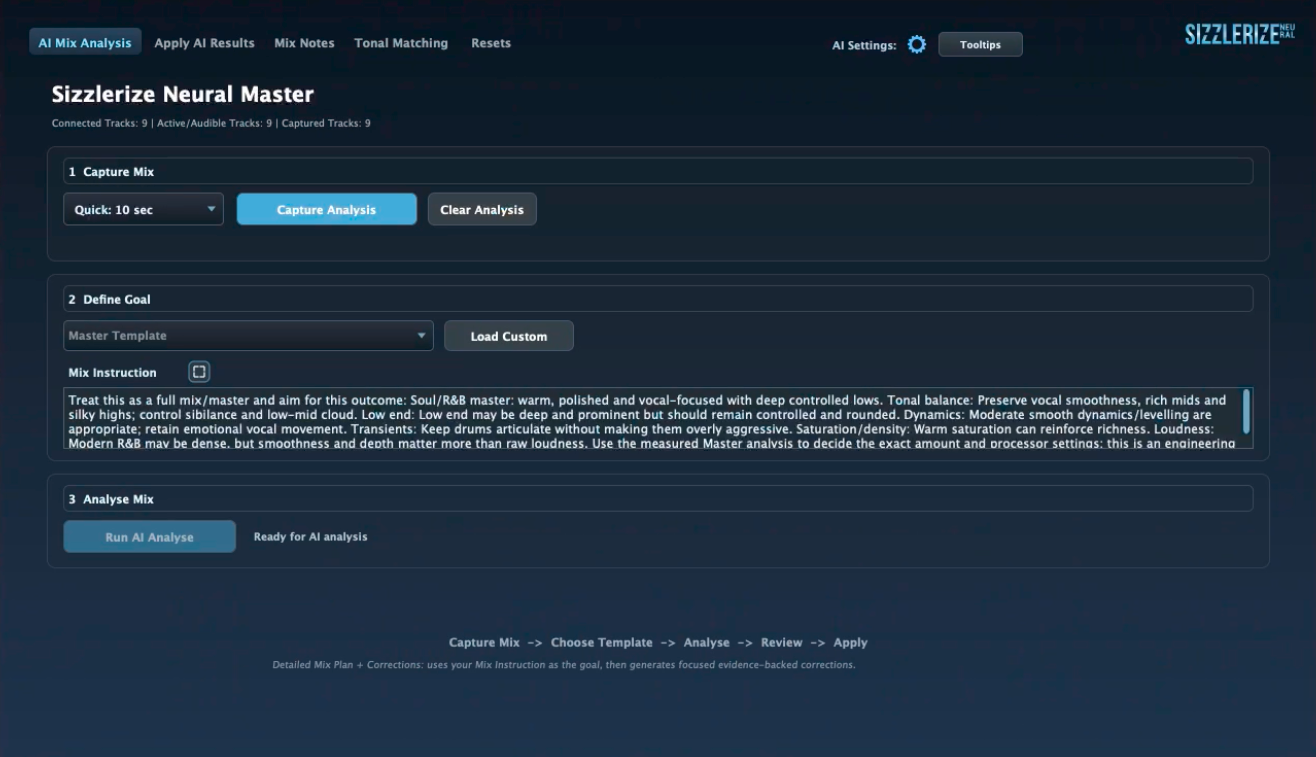
AI MIX ANALYSIS
- 1. Capture Mix: Play your track and choose an analysis time
- Click Capture Analysis and we'll get a track by track analysis of your incoming tracks
- 2. Define Goal: Choose a premade AI mix prompt or load your own
- Check the Mix Instruction, expand the text area to check it
- 3. Analyse Mix: This sends the Capture Mix analysis to AI and comes back with suggestions
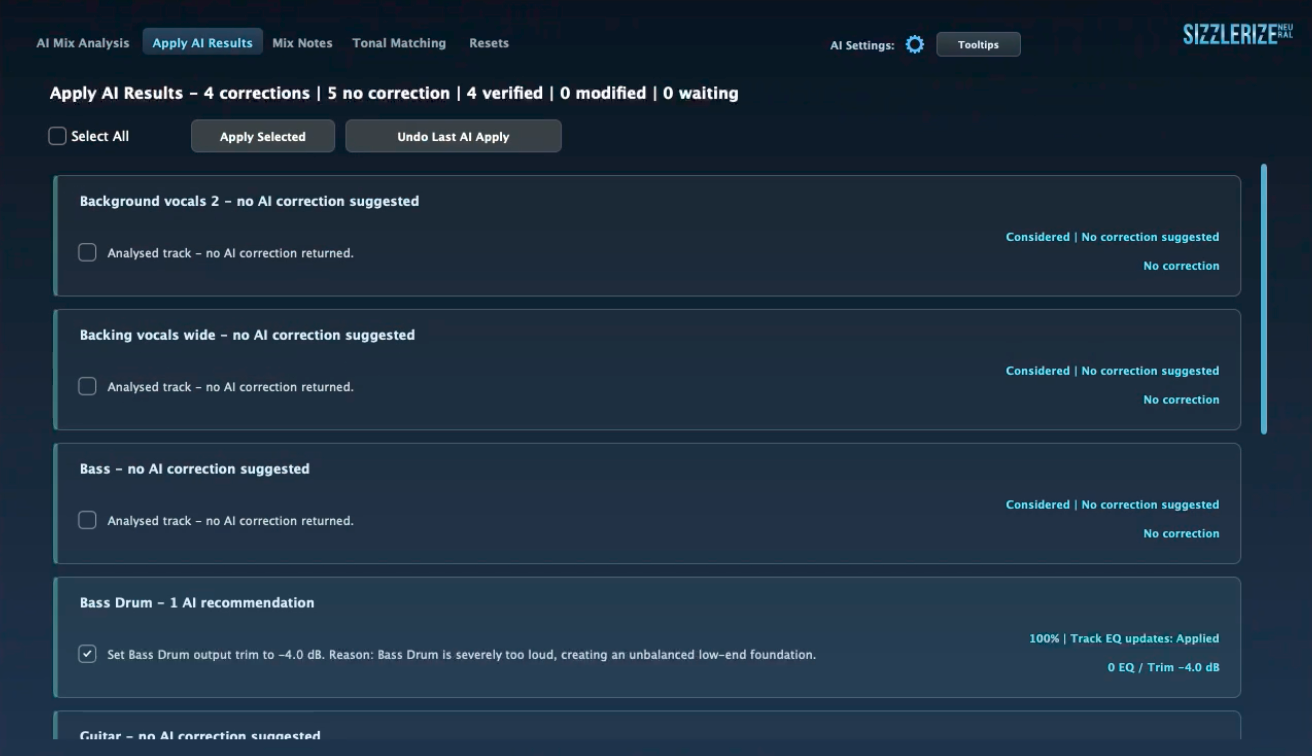
APPLY AI RESULTS
- Select results to apply: AI results are ready to apply
- Click Apply Selected for chosen tracks
- Undo last AI apply: Revert last AI apply edits
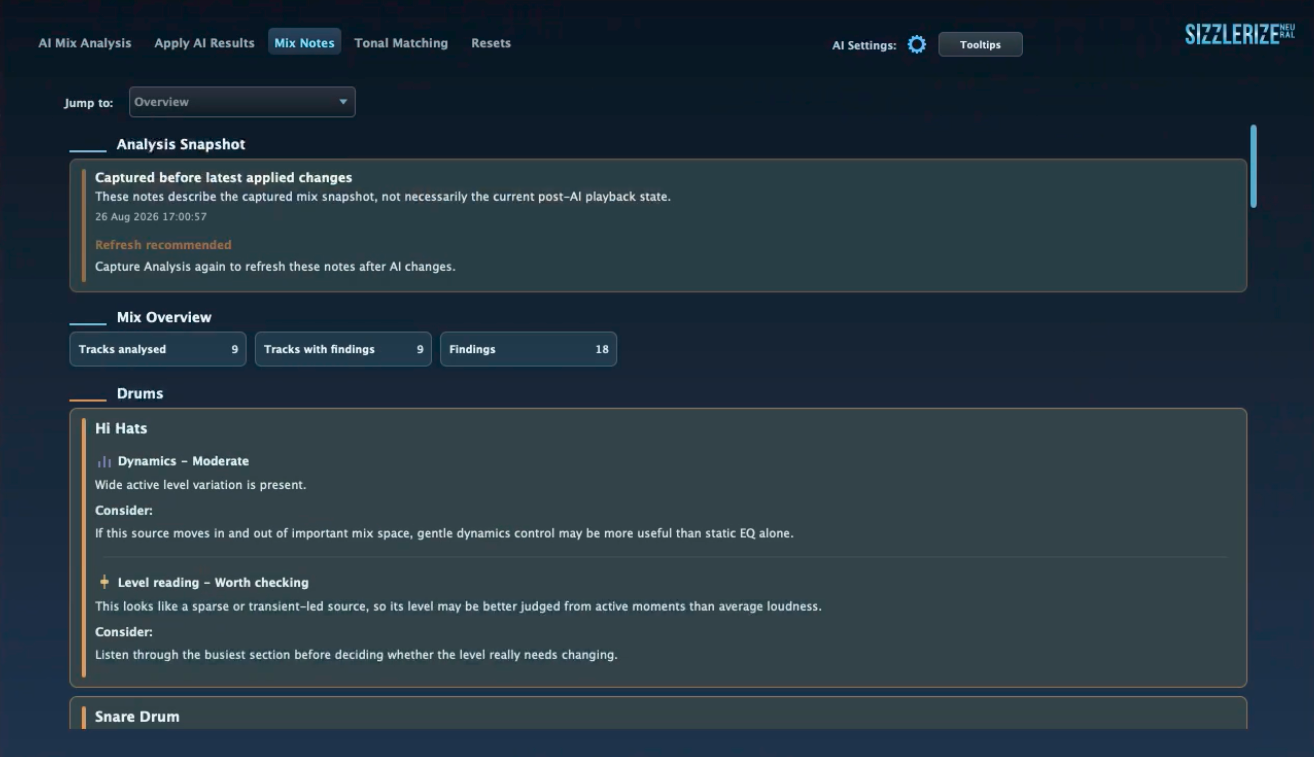
MIX NOTES
Mix Notes are a result of the initial "Capture Mix" results during "AI Mix Analysis".
If you have Applied AI results, these notes will have already been taken into consideration.
So with this information, we could just use this to improve or adjust our mix as a guide.
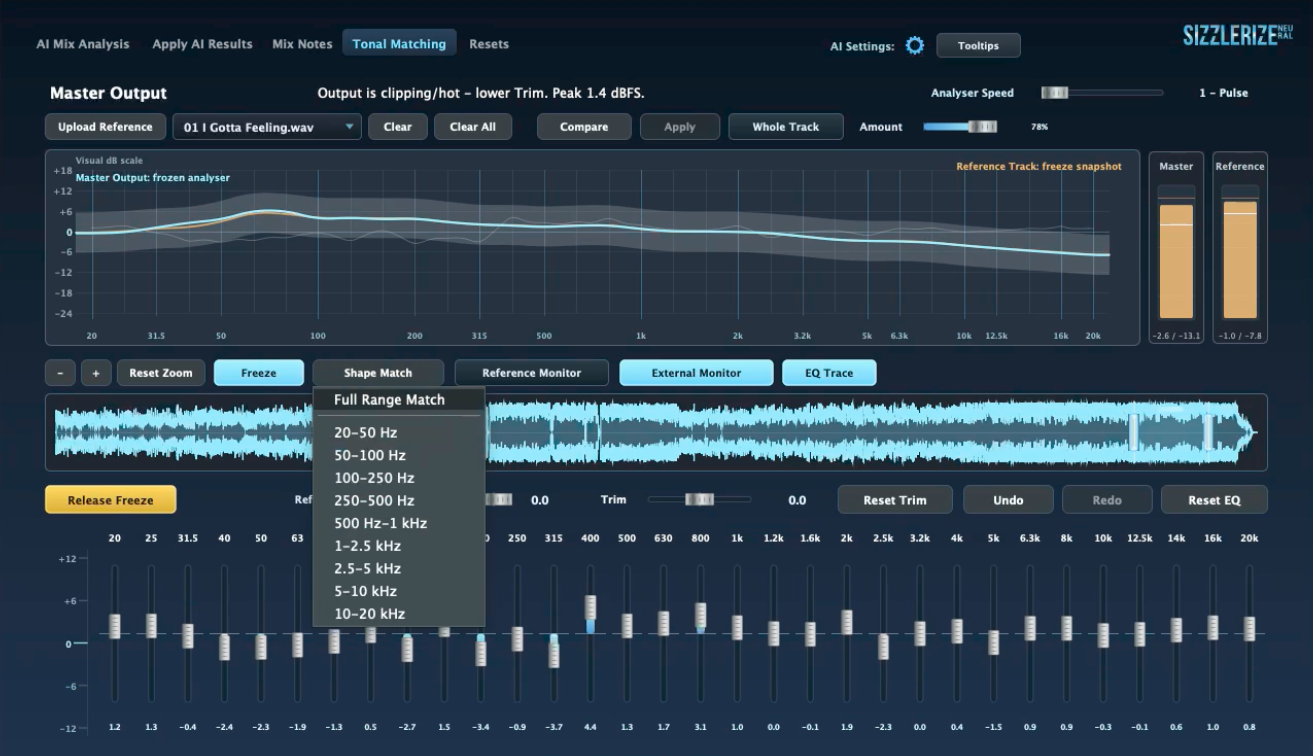
TONAL MATCHING
- Load a reference track
- Try comparing using general Digital Processing and then applying results
- Try using the Freeze function to then Shape Match your Master output to the reference track
Make sure that External Monitor is enabled and Reference Monitor plugin is enabled and at the end of your Mastering Chain.
Sizzlerize EQ
How to use
Tech Spec Sheet
AI Set Up
Local AI
Local AI requirements
Remote APIs
Reference Tracks
Analysis
Stem Splitting